Telegram has long been one of the leading platforms for communication, information sharing, and content promotion. More and more users are creating their own channels to publish news, useful content, advertisements, and themed posts. When actively managing a channel, it’s common to face the challenge of simplifying content distribution and automating posts. In this article, we’ll explore what Telegram channel cloning is, when it’s used, and which tools can help you accomplish this task quickly and conveniently.
What Is a Telegram Channel Cloner?
A Telegram channel cloner is a special premium module for Telegram Prime designed to copy content from one channel to another. Simply put, it allows you to collect posts from the source and automatically publish them to the desired channel. With this tool, you can transfer text messages, photos, videos, documents, and other types of media files. In some cases, it’s possible to preserve not only the content itself but also the channel’s structure, posting settings, and other important elements.
Why You Might Need to Clone a Telegram Channel
The cloning feature is useful in various situations, especially if you need to speed up content management or create a backup of the channel.
Backing Up
: Creating a duplicate allows you to save important materials and protect them from loss in the event of a block, deletion, or technical glitches.
Testing a New Format
: A duplicate channel is ideal for experimenting with the design, presentation, and structure of posts without putting the main project at risk.
Expanding Your Audience
: Moving content to another channel, into another language, or to a new target audience helps increase reach and scale your project.
Switching Accounts
If you need to transfer a channel to another account, cloning makes it much easier to move the content.
Creating Thematic Subchannels
You can organize a large volume of content into separate categories by creating several more specialized channels focused on specific topics.
Can You Create Multiple Channels on Telegram?
Telegram allows a single user to manage multiple channels at once. This is convenient for those who are developing different projects or working on several areas simultaneously. However, it’s important to keep in mind that creating a large number of channels without high-quality content can attract unwanted attention from moderators. Therefore, it’s best to plan your content structure in advance and fill your channels with truly useful and unique posts.
How to clone a Telegram channel
There are several ways to clone Telegram channels, and choosing the right option depends on your goals, the amount of content, and your level of technical expertise.
Manual copying
: The simplest but most labor-intensive method. All messages and files are transferred manually, so this option is only suitable for small channels.
Telegram API
: A more flexible solution that involves creating a script to automatically transfer posts. This method requires programming skills but offers extensive customization options.
Online services
: Some platforms offer tools for automatically copying posts, filtering content, and even translating messages. This is a convenient option for those who don’t want to work with code.
Cloning
Software: Specialized solutions, such as Telegram Prime, allow you to quickly set up content migration through a user-friendly interface and take advantage of additional automation options.
How to Clone a Telegram Channel While Preserving the Chat History
If you need to transfer not only recent posts but also the entire message history, the process typically involves several steps.
Data
Export First, you need to export the channel archive—including messages, files, and media—using Telegram’s built-in tools.
Data
Analysis After exporting, it’s helpful to examine the file structure to understand how the content is organized and in what format it will be imported.
Importing Content
Next, using a script or specialized software, the content is transferred to the new channel while preserving the format and chronology.
Verifying the Results
Once the process is complete, it’s important to ensure that messages, attachments, and the order of posts are displayed correctly.
Ethics and Security of Cloning Telegram Channels
When using cloning tools, it’s important to consider not only the technical aspects but also security.
Privacy
: Use only reliable software that does not share account data or channel content with third parties.
Copyright
: Before copying someone else's material, you must ensure that you have permission to use that content.
Transparency
: If the cloning is done with the consent of the original channel’s owner, it’s proper to inform the audience of the new channel about this in advance.
Telegram Prime — A Convenient Channel Cloner
Telegram Prime is a feature-rich tool for cloning Telegram channels, designed for administrators, marketers, and owners of channel networks. The program helps automate the transfer of posts and simplifies content management.
Key features of the module include:
- copying text, media files, and polls;
Benefits of Using Telegram Prime
One of the main advantages of Telegram Prime is its intuitive interface, which allows even a beginner to quickly figure out the settings. The program runs quickly, supports flexible cloning settings, and can be used in conjunction with other features, such as parsing or mass messaging. As a result, users get a comprehensive tool for content management and automated publishing.
Where Can You Use the Telegram Prime Cloner?
The module is suitable for a wide variety of tasks:
- data archiving—to save important content from a channel;
- content consolidation — to gather posts from multiple sources in one place;
- localization — to transfer content for subsequent translation;
- testing — to analyze successful publication formats;
- backup creation—to protect data from loss.
How to launch the channel cloner in Telegram Prime
Now let’s move on to the practical part. The “Channel Cloner” module can be used in conjunction with the Ishushka neural network to not only transfer posts but also adapt them to the specific task at hand. This approach allows you to make content more unique, change the presentation style, or adapt it to a specific audience.
Part 1. Real-Time Cloning
Step 1. Setting Up Your Account
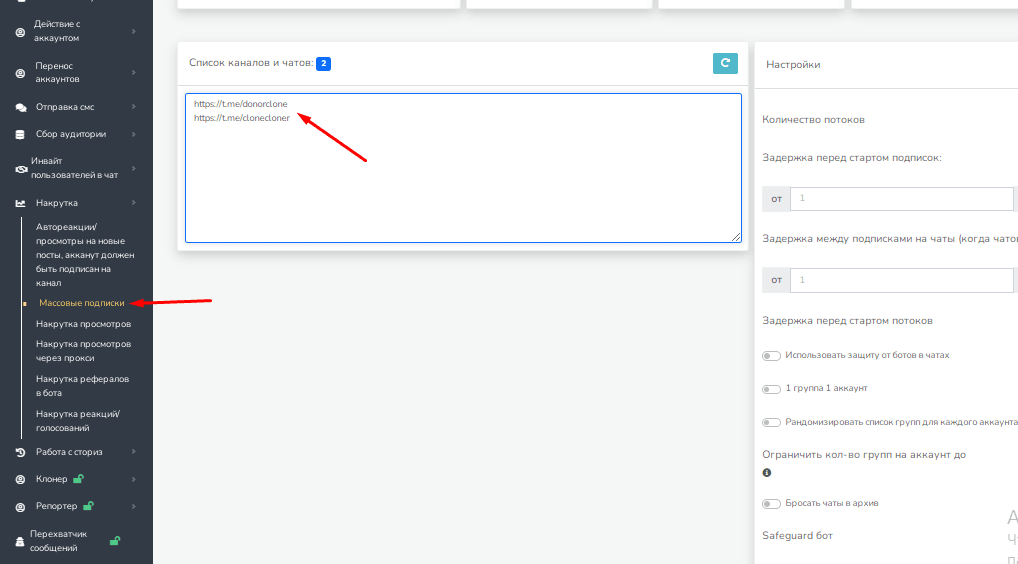
Before you start working with the “Channel Cloner” module, you need to set up your account correctly. The first step is to subscribe to all the source channels from which you plan to pull content. Next, grant the selected account administrator rights on the clone channel, where posts will be automatically transferred. It’s also important to verify in advance that the account has access to all necessary sources, including closed and private channels, if they’re used in your workflow.
Step 2. Configuring the “Channel Cloner” module
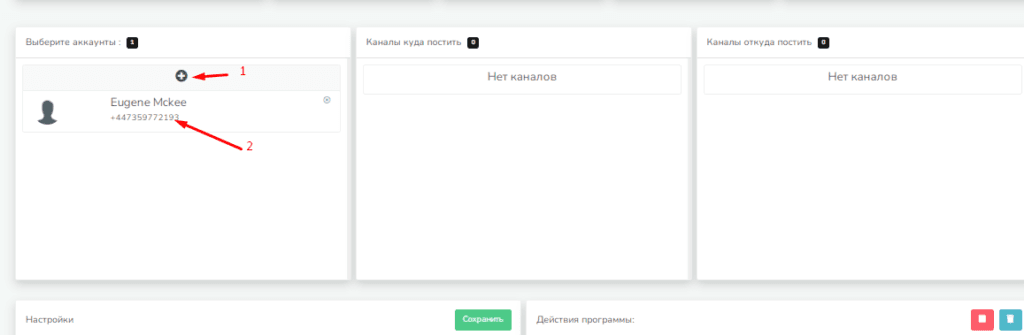
In the next step, open the “Channel Cloner” module and add the account to which the selected Telegram channels are linked. After that, simply select the desired account with a single mouse click to proceed to further configuration. Once the account is activated, the system will automatically load all available channels. Wait until the full list appears in the table, and only then proceed to the next configuration settings.
Step 3: Configuring Cloning Settings

Step 3. Selecting Channels and Configuring Cloning Settings
After loading the channel list, select the sources you plan to work with. Next, configure additional cloning settings based on your specific needs. In this module, you can specify whether to delete or replace links, determine whether to transfer media files—including photos, videos, and audio—and enable automatic replacement of specific words and phrases in message text. All settings are fairly simple to configure and pose no difficulties, even for first-time users. After making changes, be sure to click the “Save” button to apply the selected settings.
Step 4. Using a Neural Network to Rewrite Posts
The “Channel Cloner” module can be used in conjunction with the Ishushka neural network to not only copy posts but also automatically adapt them to the desired style. This integration allows you to intelligently rewrite posts and tailor content to a specific audience or presentation format.
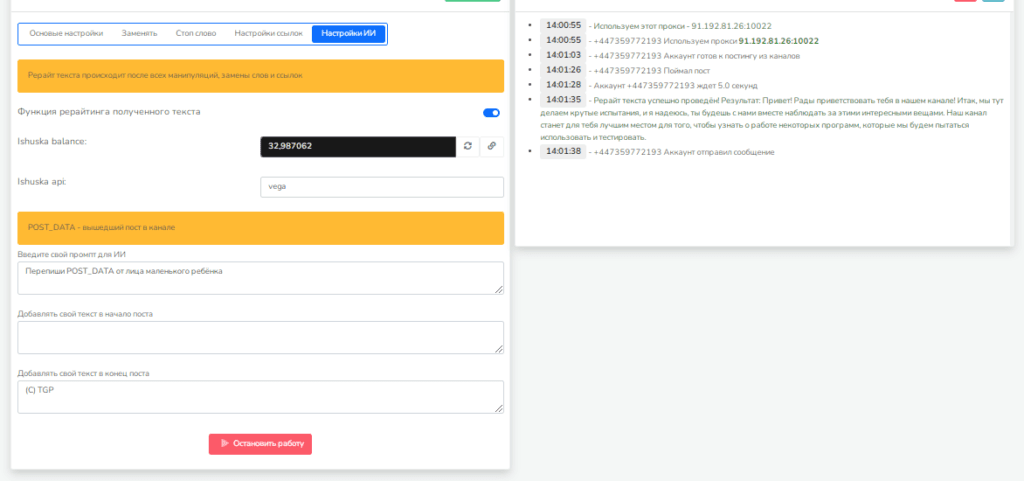
To set it up, simply provide a brief prompt for the AI. For example: “Rewrite the POST_DATA as if it were written by a small child.” If necessary, you can also specify a unique copyright notice, which the program will automatically add to the end of each message. Once all settings are complete, click the “Start” button to begin cloning and processing the content.
Real-time cloning results
Once launched, the module automatically begins monitoring the source channel for new posts. As soon as a post appears, the program immediately captures it for further processing. For example, a post may be received by the system in the POST_DATA format, after which the neural network analyzes the text and rewrites it according to a specified prompt. Depending on the settings, the message can be adapted to a lighter, more lively, or non-standard style tailored to a specific audience. After processing, the finished content is automatically published on a clone channel, preserving the freshness of the wording and ensuring a more unique presentation of the content.
Example of the module in action
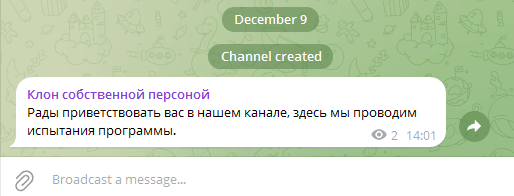
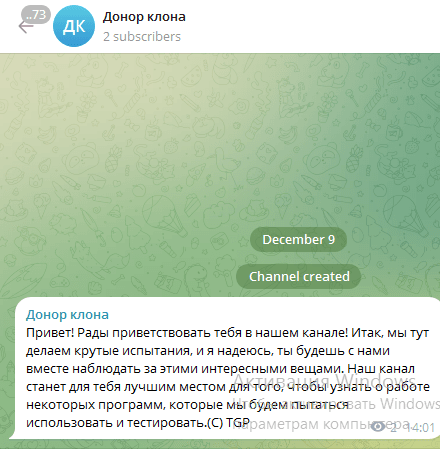
To clearly understand how this works, let’s look at a simple example. First, the system automatically captures the original post from the selected Telegram channel. This can be seen in the first screenshot, where the program captures the text for further processing. After that, the message is processed according to the specified parameters, and the final result appears in the clone channel. The second screenshot shows the final version—a unique post with a copyright notice added, ready for automatic publication.
Why You Should Use the “Channel Cloner” Module
The “Channel Cloner” module in Telegram Prime helps significantly simplify content management and automate routine processes. First and foremost, it saves time, since transferring posts and rewriting them is done automatically, without the need to do everything manually. An additional advantage is the flexibility of the settings: users can filter messages, replace specific words, and tailor texts to the desired audience. The creative capabilities are particularly noteworthy—integration with a neural network allows you to create more unique and unconventional content. At the same time, the module itself remains user-friendly, and its intuitive interface makes it accessible even to those who are just starting to work with such tools.
Part 2. Old Post Cloner
The “Channel Cloner” module allows you to work not only with new posts but also with older posts from the channel’s history. This feature is especially useful when you need to transfer a specific range of posts, preserve an archive of content, or quickly populate a new channel with ready-made content.
How Cloning Old Posts Works
The process for working with archived posts is largely similar to real-time cloning. The main difference is that here, the user specifies the range of post IDs to be transferred. This allows you to avoid copying the entire feed and instead select only the posts you need for further transfer or processing.
Step 1. How to Find the ID of the Post You Need
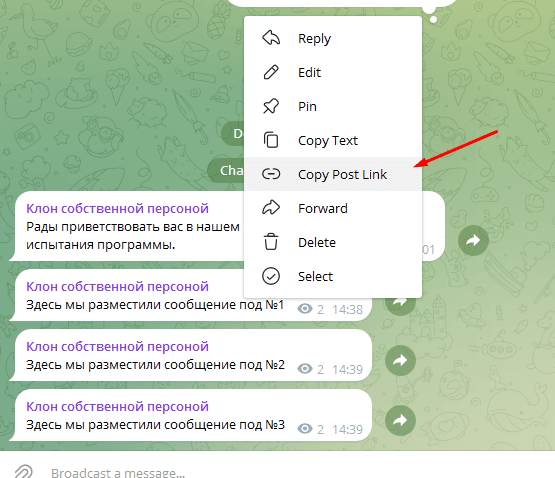
To copy specific posts from a channel, you first need to find their unique identifier—the post ID. To do this, open the desired post in the channel, right-click on it, and select “Copy post link” from the menu that appears. You’ll then receive a link to the post. For example: https://t.me/your_channel/6. The number at the end of the link is the post ID, which you’ll need for cloning.
Step 2. Specifying the Range of Post IDs
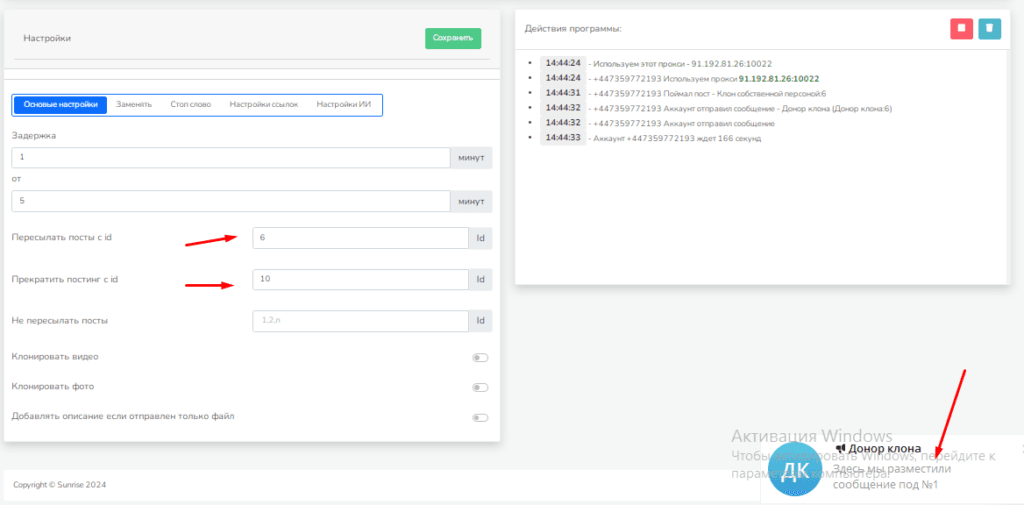
Once you know the IDs of the posts you want, you can specify the range of posts to transfer. This is especially convenient if you need to clone not just one post, but several in a row. For example, if you need to copy posts with IDs from 6 to 10, specify the range 6–10 in the settings.
Step 3. Configure settings and start cloning
Next, go to the “Channel Cloner” module, select an account, and specify the channel you’ll be working with. In the ID range field, enter the desired values, such as 6–10. If necessary, further configure the cloning settings: specify whether to transfer media files, set options for replacing or deleting specific words, and enable the necessary filters. Once all settings are configured, click the “Start” button to begin the message transfer process.
What Happens After You Start
Once the process begins, the program accesses the specified range of messages and starts transferring the selected posts to the clone channel. The structure of the posts, text formatting, and media files are preserved, provided that their transfer was enabled in the settings beforehand. This approach ensures accurate and precise content cloning, even when working with a large number of old posts and a channel with a long history.
Example of Cloning Old Posts
To illustrate this, let’s look at a simple example. Suppose post ID 6 was selected for transfer. After launching the module, this post is copied to a new channel, and the final result is immediately displayed in the cloned channel. This allows you to quickly verify the accuracy of the transfer and ensure that the post was copied correctly.
When to Use the Old Post Cloner
The feature for moving old posts is particularly useful in several common scenarios. First, it’s ideal for archiving important content when you need to save old posts in a separate channel. Second, this tool is convenient for creating themed collections when you need to select only specific posts on a particular topic. The cloner can also be used to analyze and subsequently tailor content to your audience. Additionally, transferring historical posts helps you quickly populate a new channel with ready-made content without having to start from scratch.
Benefits of Cloning Old Posts
This feature offers several important advantages. It provides flexibility in selecting posts, since you decide exactly which ones to transfer. The module also saves a significant amount of time by allowing you to quickly copy large volumes of content without manual effort. Another significant advantage is the accuracy of the transfer, which preserves the text formatting, attachments, and overall structure of the posts.
If you'd like, I can now combine all these paragraphs into a single, complete SEO article without omitting any of the instructions and maintaining a consistent style throughout.